

Guides
How to use Granite with Siri and mobile shortcuts
Set up Granite voice and price-scanning shortcuts on iPhone or Android. Learn how to use Siri, Control Center, Apple Shortcuts, and Android launcher shortcuts.
What do Granite mobile shortcuts do?
Granite mobile shortcuts give you a faster way to open Log by Voice or Scan Price. On iPhone, you can use Siri, the Shortcuts system, or controls in Control Center. On Android, supported devices show launcher shortcuts when you touch and hold the Granite app icon.
A shortcut opens the selected Granite capture flow. It does not charge a card, move money, or save a transaction without your review.
Choose the shortcut that matches your device
| Platform | Shortcut options | Granite actions |
|---|---|---|
| iPhone with iOS 18 or later | Siri, Apple Shortcuts, and Control Center | Log by Voice and Scan Price |
| Supported Android devices | App-icon launcher shortcuts | Log Voice and Scan Price |
Add Granite to iPhone Control Center
On iOS 18 or later, open Control Center, enter editing mode, and choose the option to add a control. Search for Granite, then choose Log by Voice or Scan Price.
After adding a control, tap it whenever you want to open the matching Granite capture screen. You can add both controls and arrange them where they are easiest to reach.
- Choose Log by Voice when you want to speak a purchase
- Choose Scan Price when you want to photograph a visible price tag
- Open Granite normally first if a newly installed control does not appear
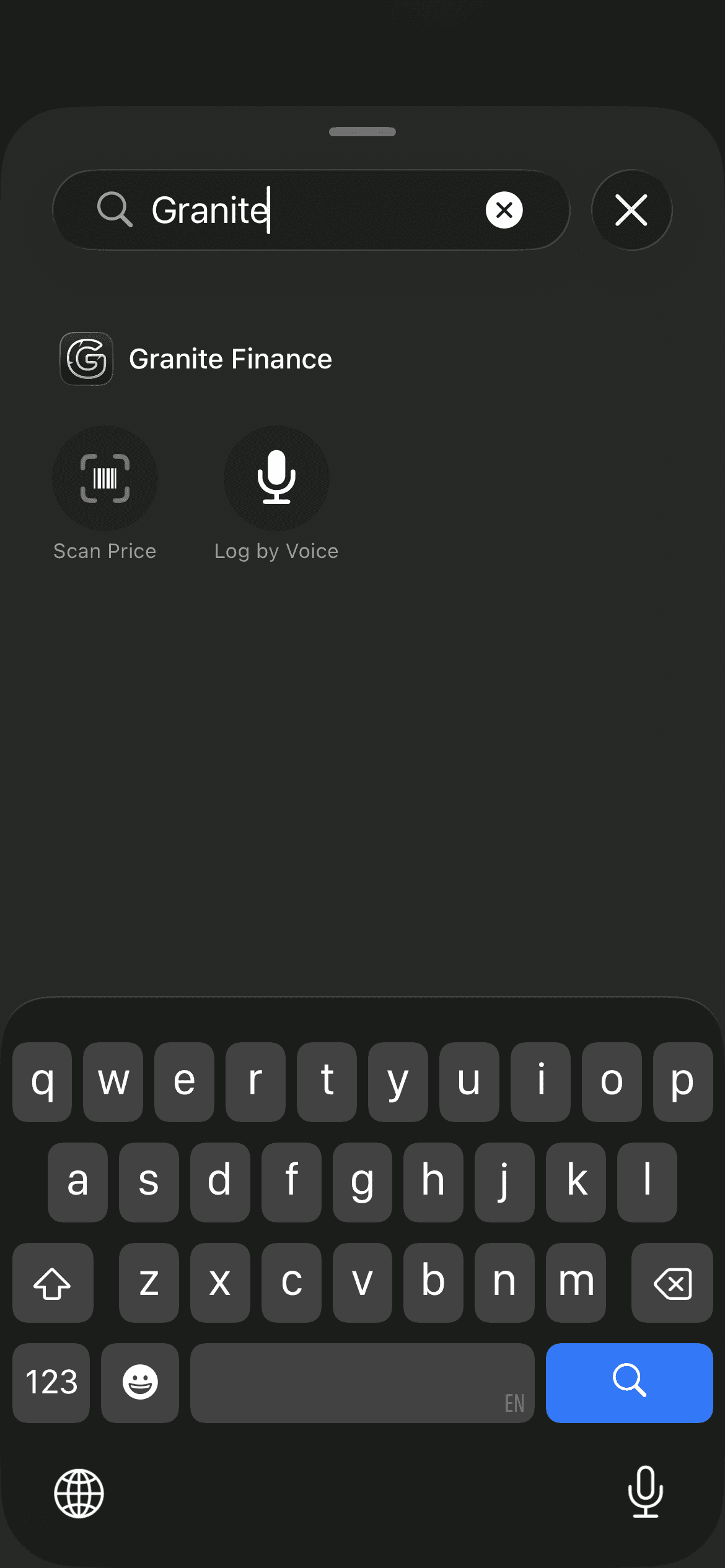
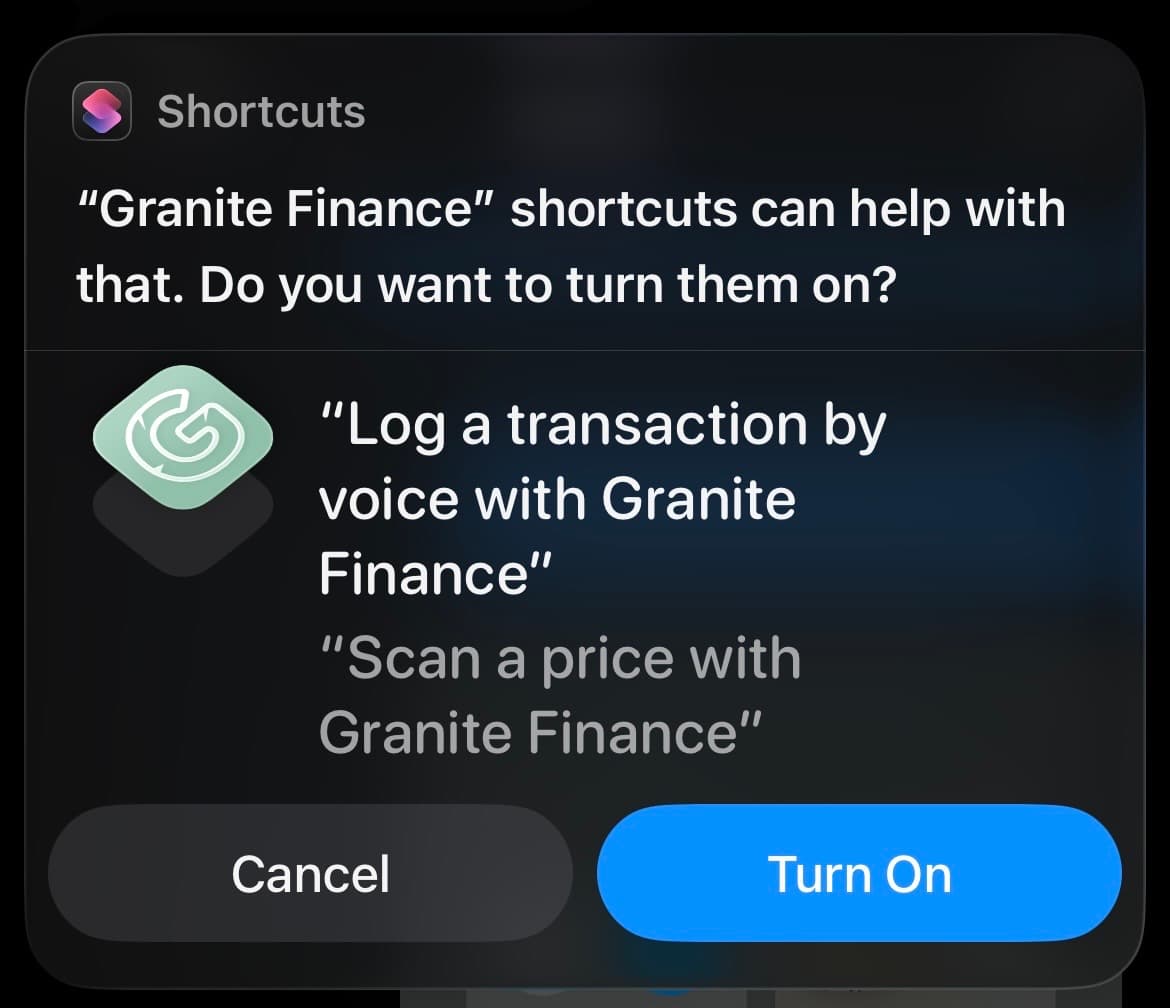
Turn on Granite shortcuts when iOS asks
iOS may offer to turn on Granite’s Log by Voice and Scan Price shortcuts. Choose Turn On if you want them available through Siri and Apple’s Shortcuts system.
You can review or manage the available actions later in the Shortcuts app. Turning them on only creates faster entry points into Granite.
Ask Siri to open Granite
On iOS 18 or later, try one of Granite’s supported Siri phrases. Siri opens the corresponding Granite screen; it does not save a transaction automatically.
- “Log a transaction by voice with Granite Finance”
- “Record a transaction with Granite Finance”
- “Scan a price with Granite Finance”
- “Open Scan Price in Granite Finance”
Allow the permissions required by the selected action
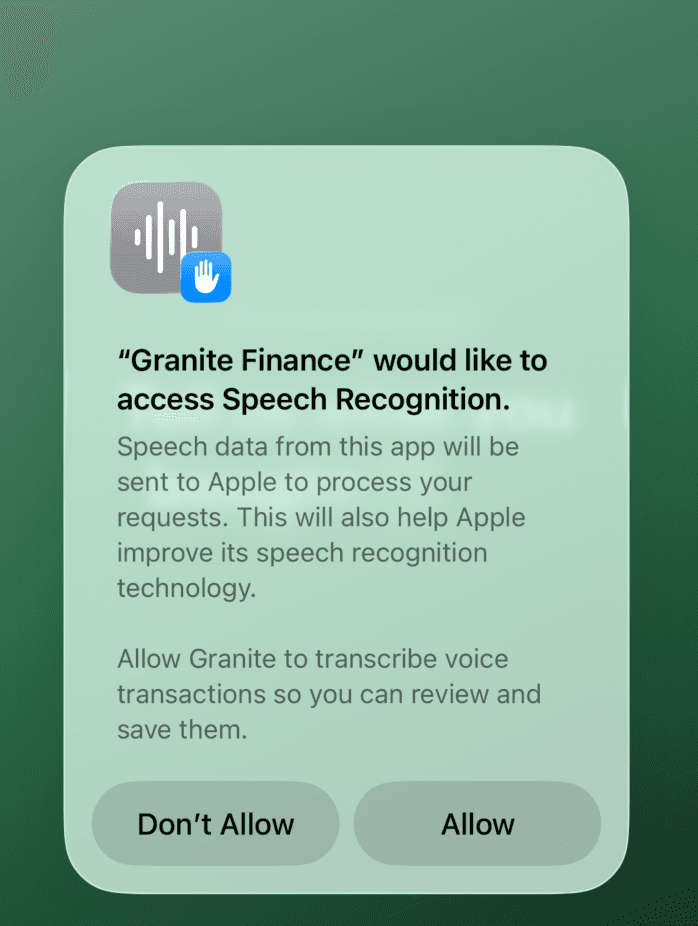
Log by Voice needs microphone and speech-recognition access. On iPhone, Apple’s permission notice explains that speech data may be sent to Apple to process your request and improve speech-recognition technology. On Android, Granite uses microphone access and an available device speech-recognition service.
Scan Price needs camera or photo-library access when you choose to capture or select an image. Granite also presents a separate disclosure before optional external AI photo processing.
Use Granite launcher shortcuts on Android
On a supported Android device, touch and hold the Granite app icon. Choose Log Voice to open voice transaction capture or Scan Price to open the camera scanner.
The exact menu appearance can vary by launcher and device. These are app-icon shortcuts rather than Siri commands or iPhone Control Center controls.
- Update Granite before looking for newly added launcher shortcuts
- Try touching and holding the app icon from the home screen or app drawer
- Open Granite once after installation or an update, then check again
What happens after a shortcut opens?
Log by Voice opens Granite’s voice transaction flow so you can speak one purchase, review the transcript, and verify the suggested transaction details. Scan Price opens the camera flow so you can capture a visible price and review the suggested item, amount, currency, and category.
Always review the result before saving. A confirmed capture becomes a manual expense and can affect supported budget views.
What if a Granite shortcut is missing or does not open?
If the shortcut opens Granite but the capture itself does not work, check microphone, speech-recognition, camera, photo, and network access for the feature you selected.
- Update Granite and your phone’s operating system
- Open Granite normally once and confirm you can reach the capture feature inside the app
- Restart the phone after installing an app or operating-system update
- On iPhone, check the Shortcuts app and Granite permissions in Settings
- On Android, try the device’s default launcher if another launcher hides app shortcuts
- Use the microphone or scanner inside Granite when the system shortcut is unavailable
Continue learning
Keep building the full picture
Guides
How to log a transaction by voice with Granite
Speak a purchase in Granite on iPhone or Android, then review the suggested transaction before saving. On iPhone, start with Siri or Shortcuts.
Guides
How to scan a price tag and add cash spending
Use Granite’s mobile price scanner to capture a visible price, review the suggested item and category, and add an editable cash expense.
Guides
How to add the Granite widget to your iPhone
Put your current Granite spending context on the iPhone Home Screen with a Small or Medium widget.
Guides
How to manage your Granite account
Manage your subscription, connected banks, privacy choices, supported platforms, and permanent account deletion.