

Guides
How to add the Granite widget to your iPhone
Put your current Granite spending context on the iPhone Home Screen with a Small or Medium widget.
Before you add the widget
Open Granite and allow the dashboard to load at least once. This gives the widget an initial budget snapshot to display. The widget is currently available on supported iPhones in Small and Medium sizes.
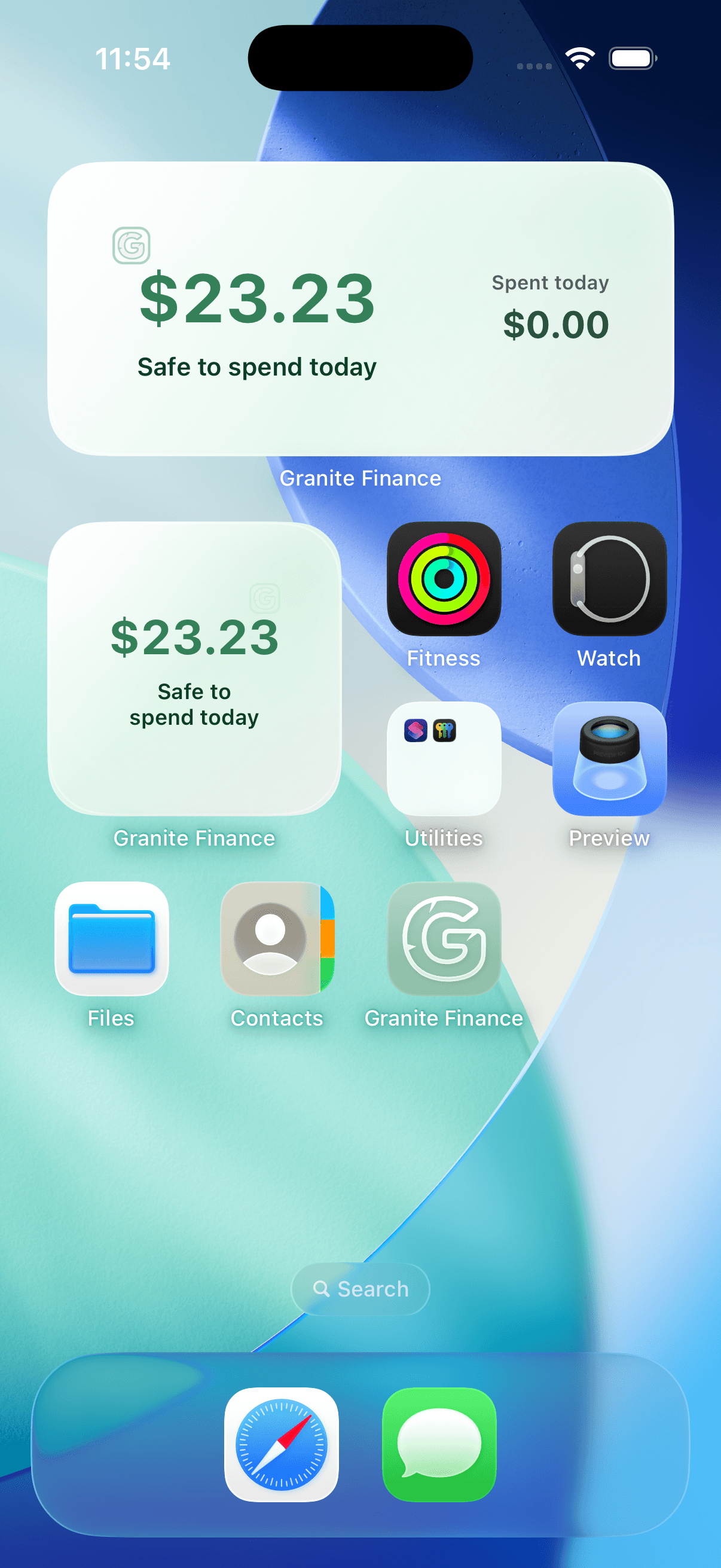
Add Granite to your Home Screen
- Touch and hold an empty area of the iPhone Home Screen until the apps begin to jiggle
- Tap Edit, then tap Add Widget
- Search for Granite
- Choose the Small or Medium layout and tap Add Widget
- Move the widget where you want it, then tap Done
Choose the amount of context you want
The Small widget provides a clean daily snapshot. The Medium widget has more room for supporting week and month context. Both are designed for a quick check rather than replacing the full Granite dashboard.
If the widget looks out of date
- Open Granite and let the dashboard finish updating
- In Granite Settings, expand Home Screen Widget
- Tap Refresh Widget Data
- Give iOS a moment to refresh the Home Screen
Continue learning
Keep building the full picture
Getting started
What is a daily budget? Meaning and examples
Learn what a daily budget means, see a simple example, and understand how Granite turns a monthly financial plan into useful spending context.
Guides
How to use Granite on Apple Watch
Install the Granite companion app, sync your latest budget, and add the Daily Budget complication to a supported watch face.