

Guides
How to scan a price tag and add cash spending
Use Granite’s mobile price scanner to capture a visible price, review the suggested item and category, and add an editable cash expense.
What does price-tag scanning do?
Granite’s mobile price scanner can read one visible consumer price tag and suggest a price, item name, and spending category. It is useful when you are about to pay with cash or otherwise want to record a purchase that may not arrive from a connected account.
The scan is a starting point, not a final transaction. Granite shows the result for review so you can correct it before choosing whether to add it to today’s spending.
Where do I find the scanner?
Open the Granite mobile app and look for the Scan a price tab along the left edge of the dashboard. Tap the tab, or swipe it toward the center of the screen, to open the scanner.
Availability can depend on your Granite app version, account, device capabilities, and current feature rollout. Update the app before troubleshooting a scanner that is not visible.
How do I scan a price tag?
- Open Scan a price from the mobile dashboard
- Review the AI photo-processing disclosure and choose Agree and continue
- Photograph the tag or choose an existing photo from your library
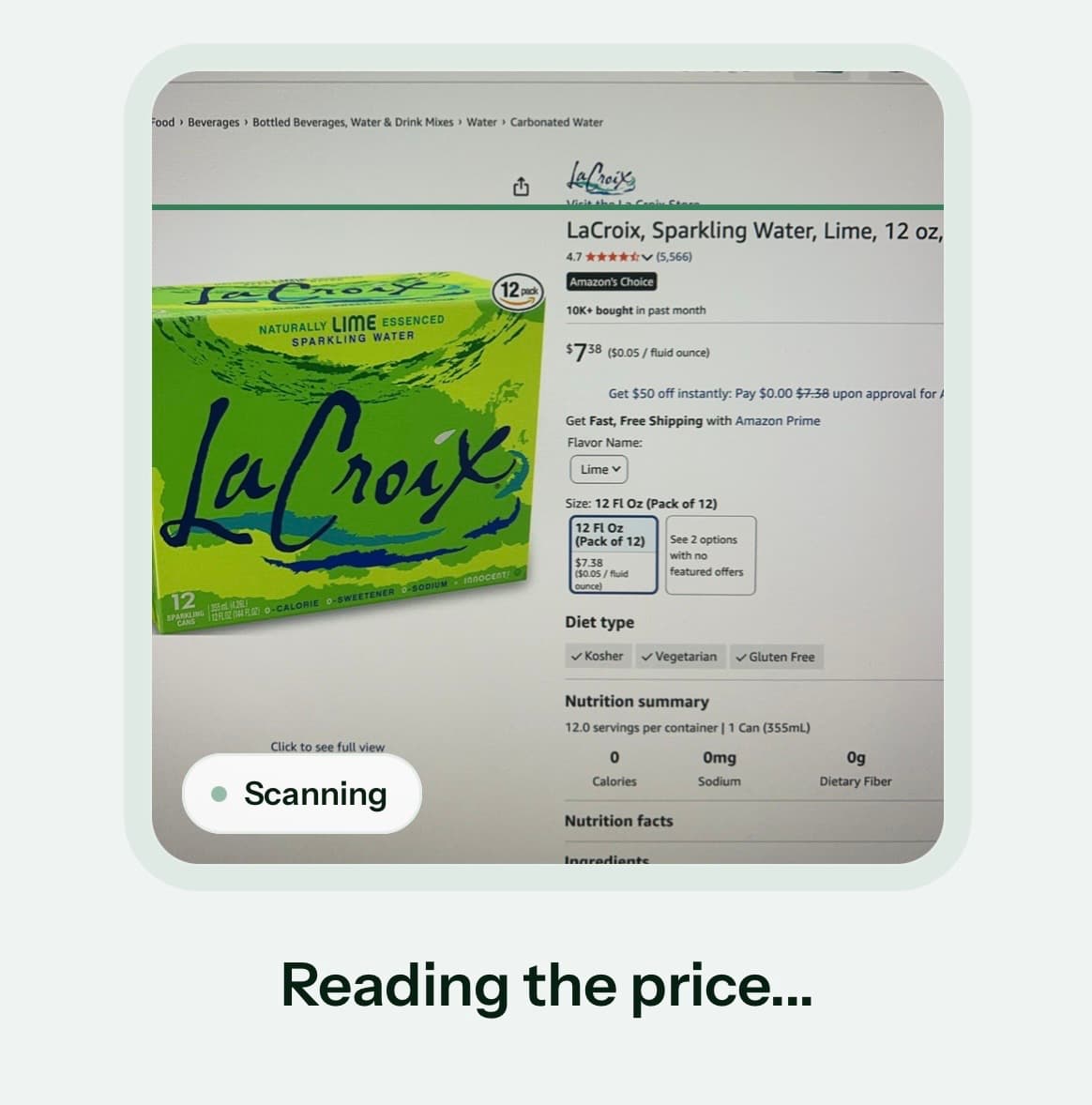
- Crop closely enough to keep the full price and useful item text visible
- Wait while Granite uploads and analyzes the image
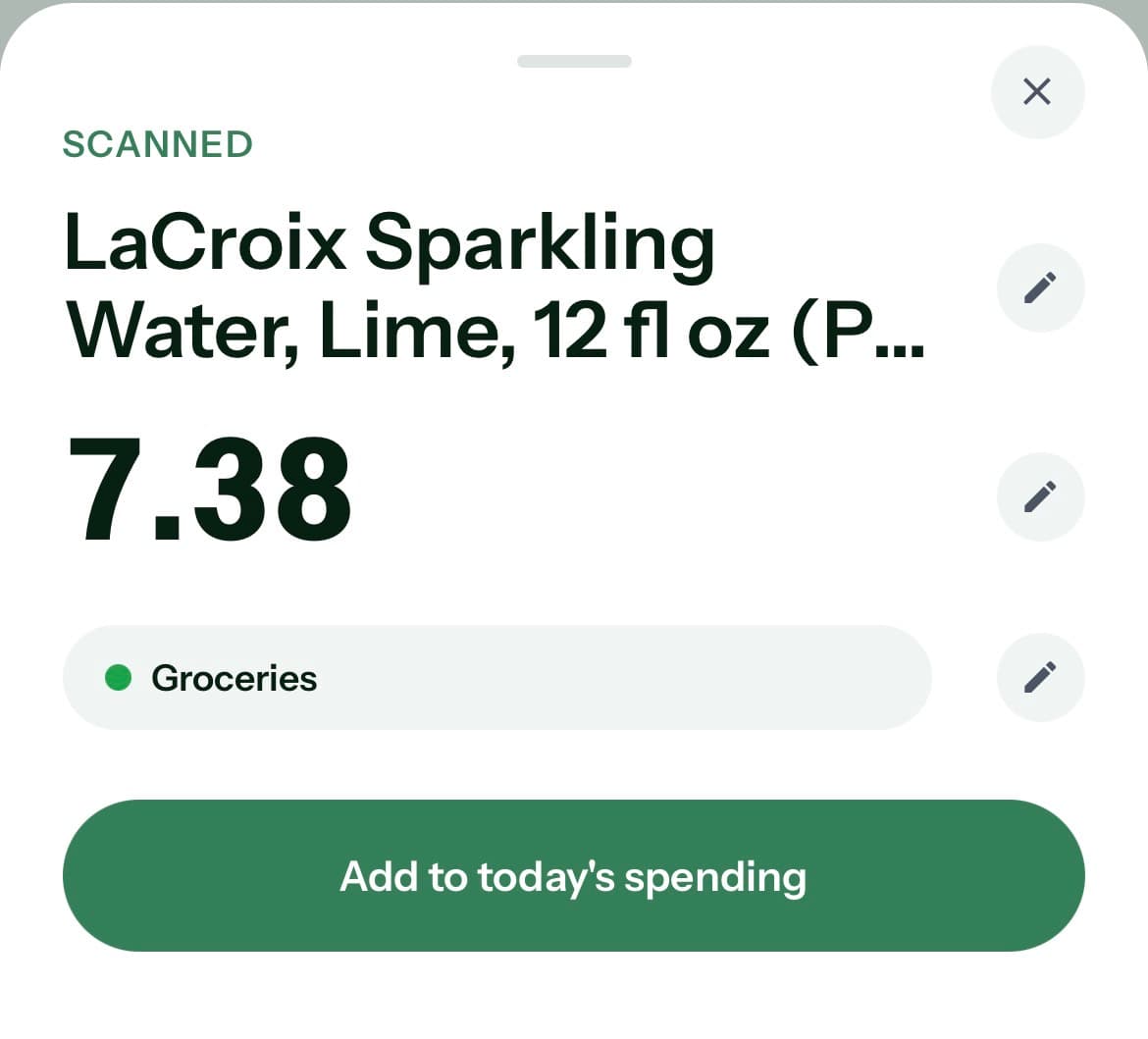
- Review and edit the suggested item name, price, and category
- Choose Add to today’s spending only when the details are correct
What makes a good photo?
Keep the price in focus, avoid glare, and include enough of the nearby label to identify the item. Crop away unrelated shelves and signs without cutting off the price or currency symbol.
- Hold the device steady and keep the tag reasonably straight
- Use even lighting instead of a flash reflection across the price
- Move closer when the printed text is small
- Keep one main price tag in the crop when several are nearby
What happens to the photo?
Before the first scan, Granite shows a separate disclosure for AI price-tag photo processing. If you agree, Granite may send the photo you choose and surrounding details visible in that image to OpenAI to identify a visible price, item, and category.
Granite prepares the image for upload and re-encodes it on the server, which removes embedded metadata such as camera GPS details. Temporary mobile photo files are cleaned up when the scan workflow finishes. Granite requests that the provider not store the model response for later retrieval.
Does Granite save the result automatically?
No. After analysis, Granite opens a confirmation sheet with the suggested item name, price, and category. Review every field and make any needed edits before saving.
Choosing Add to today’s spending creates a manual expense in Granite. It does not charge a card, move money, or create a transaction at your bank.
What if the result looks wrong or uncertain?
Treat every scan as a suggestion. You can edit the item name, price, and category before adding the expense. Granite also displays a warning when the scan has lower confidence so you know to check it more carefully.
If the crop contains several prices, a discount label, or small surrounding text, retaking a tighter and clearer photo can produce a more useful result.
What if the photo is blurry or no price is visible?
Granite can return a specific retake message instead of inventing a price. For blur, glare, or poor focus, retake the photo with sharper text and more even lighting. If no price is visible, include the full price and nearby item label in the next crop.
Can I cancel or retry a scan?
You can dismiss a scan while it is processing. On supported connections, Granite also asks the analysis service to stop, although network and hosting behavior can affect whether cancellation reaches every processing step immediately.
If the app reports that you are offline, the scan timed out, or the scanner is temporarily unavailable, reconnect if needed and retry. Reusing the same scan session during a network retry helps Granite avoid repeating completed analysis.
Which currencies can I save?
Granite can detect and preserve a supported ISO currency from the image. Review the detected currency before saving; if Granite cannot confirm it, choose the price currency from the supported list.
You can select a reporting currency such as USD, CAD, EUR, MXN, or another supported option for budget and spending totals. Granite keeps the reviewed source amount and currency, then converts eligible totals into the reporting currency. A conversion can remain pending or unavailable when the required currency or rate is missing.
Do I have to enable AI photo scanning?
No. Choose Not now on the photo-processing disclosure if you do not want to use the scanner. Declining photo scanning does not disable manual transaction entry or Granite’s core budget calculations, and it does not change your separate preference for AI-generated insights.
How does a scanned expense affect my budget?
A confirmed scan becomes a manual expense dated today, so it can reduce the amount Granite shows as available in supported daily, weekly, and monthly views. Before saving, check whether the same purchase is likely to arrive later from a connected account; keeping both records can count it twice.
Continue learning
Keep building the full picture
Guides
How to use Granite with Siri and mobile shortcuts
Set up Granite voice and price-scanning shortcuts on iPhone or Android. Learn how to use Siri, Control Center, Apple Shortcuts, and Android launcher shortcuts.
Guides
How to log a transaction by voice with Granite
Speak a purchase in Granite on iPhone or Android, then review the suggested transaction before saving. On iPhone, start with Siri or Shortcuts.
Guides
How transactions affect your Granite budget
Understand how purchases, income, pending activity, manual entries, edits, categories, and ignored transactions change what remains available.
Guides
How to create and manage custom categories in Granite
Create expense categories that match your life, recategorize transactions, and understand what happens when a category is renamed or deleted.
Guides
How to search and filter transactions in Granite
Find the activity you need by merchant, category, account, date, amount, or transaction status.
Guides
How to manage your Granite account
Manage your subscription, connected banks, privacy choices, supported platforms, and permanent account deletion.