

Guides
How to search and filter transactions in Granite
Find the activity you need by merchant, category, account, date, amount, or transaction status.
Start with Recent Transactions
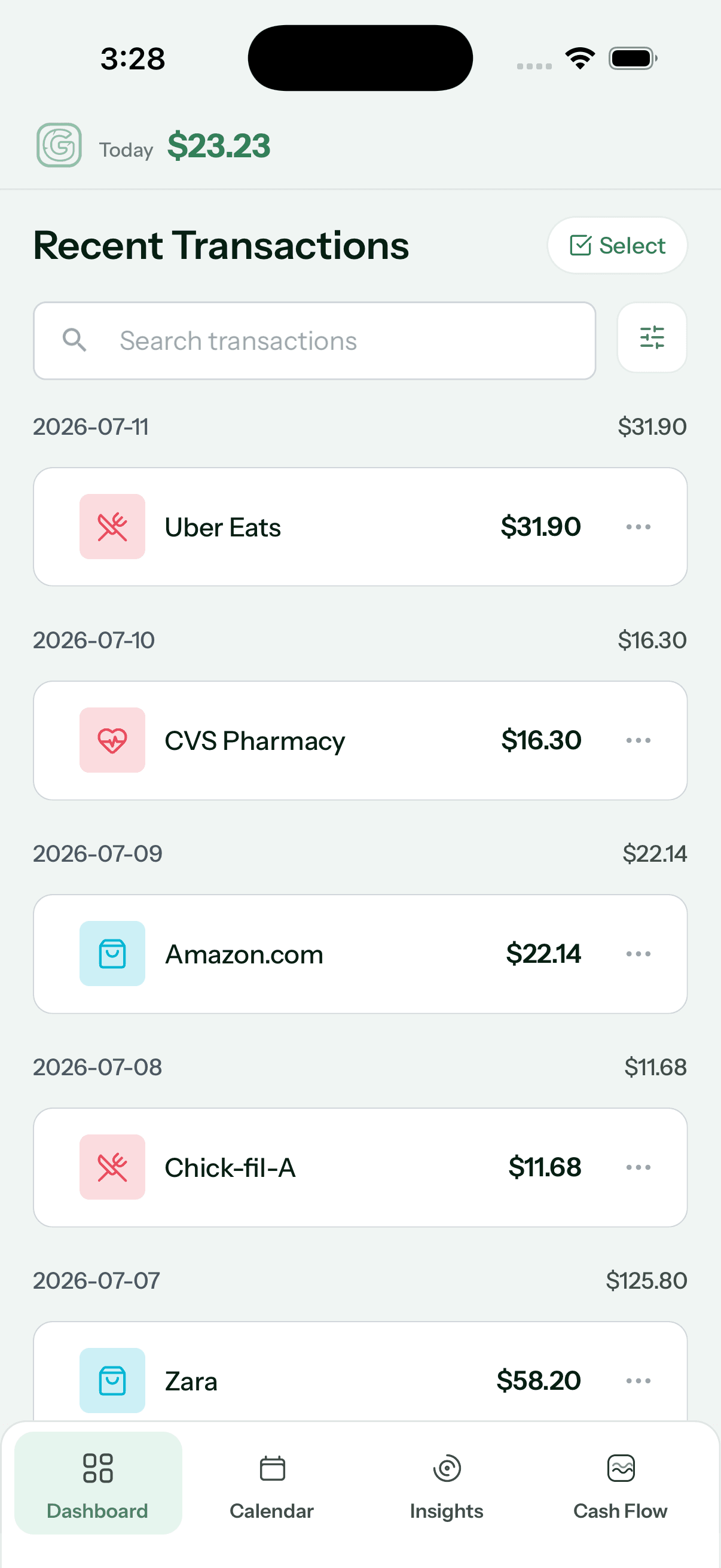
Open the Dashboard and scroll to Recent Transactions. Granite groups the default view by date, with a daily total above the activity that belongs to that day.
Use the search field when you already know what you are looking for. Search can match the displayed merchant, the original merchant description, or the transaction category.
Combine filters when one is not enough
Tap the sliders button beside Search transactions to open Filters & sorting. Filters work together, so you can look for restaurant purchases from one card during the last 30 days instead of reviewing the entire history.
- Account: show activity from one connected account or return to All Accounts
- Category: choose one or more Granite categories
- Time: use 7D, 14D, 30D, month to date, a custom date range, or all time
- Search: match a merchant description or category within the filtered results
Change how the results are organized
- Newest First or Oldest First groups activity by transaction date
- Spending (High → Low) surfaces the largest purchases first
- By Category groups spending and shows category totals
- Income Only isolates deposits and other activity treated as income
- Ignored Transactions lets you review activity currently excluded from the normal list
Review one transaction or several
Tap the three-dot menu on a transaction when you need to review or edit that individual item. Use Select when several active transactions should receive the same category update.
Bulk changes are most useful when several similar purchases were categorized the same way. Review the selection before saving, especially when income and spending appear together.
Filtering changes the view—not the underlying activity
Searching, sorting, and filtering help you inspect a smaller part of the transaction history. They do not delete transactions or change the budget by themselves. A transaction changes only when you take an explicit edit, ignore, restore, or category action.
Continue learning
Keep building the full picture
Guides
Connected accounts and pending transactions
Follow a transaction from secure account connection through Plaid, Granite synchronization, pending activity, and your updated budget.
Guides
How to read the Granite calendar
See daily spending, daily budget history, overspending days, and upcoming recurring activity in one monthly view.
Guides
How to understand Granite Insights
Read your monthly snapshot, six-month trends, category spending, largest expenses, and savings progress without mixing unlike totals.