

Guides
How to use Granite on Apple Watch
Install the Granite companion app, sync your latest budget, and add the Daily Budget complication to a supported watch face.
Install Granite Watch
If Automatic App Install is enabled for your paired Apple Watch, the Granite companion app may install with the iPhone app. Otherwise, open the Watch app on your iPhone, tap My Watch, scroll to Available Apps, and tap Install next to Granite.
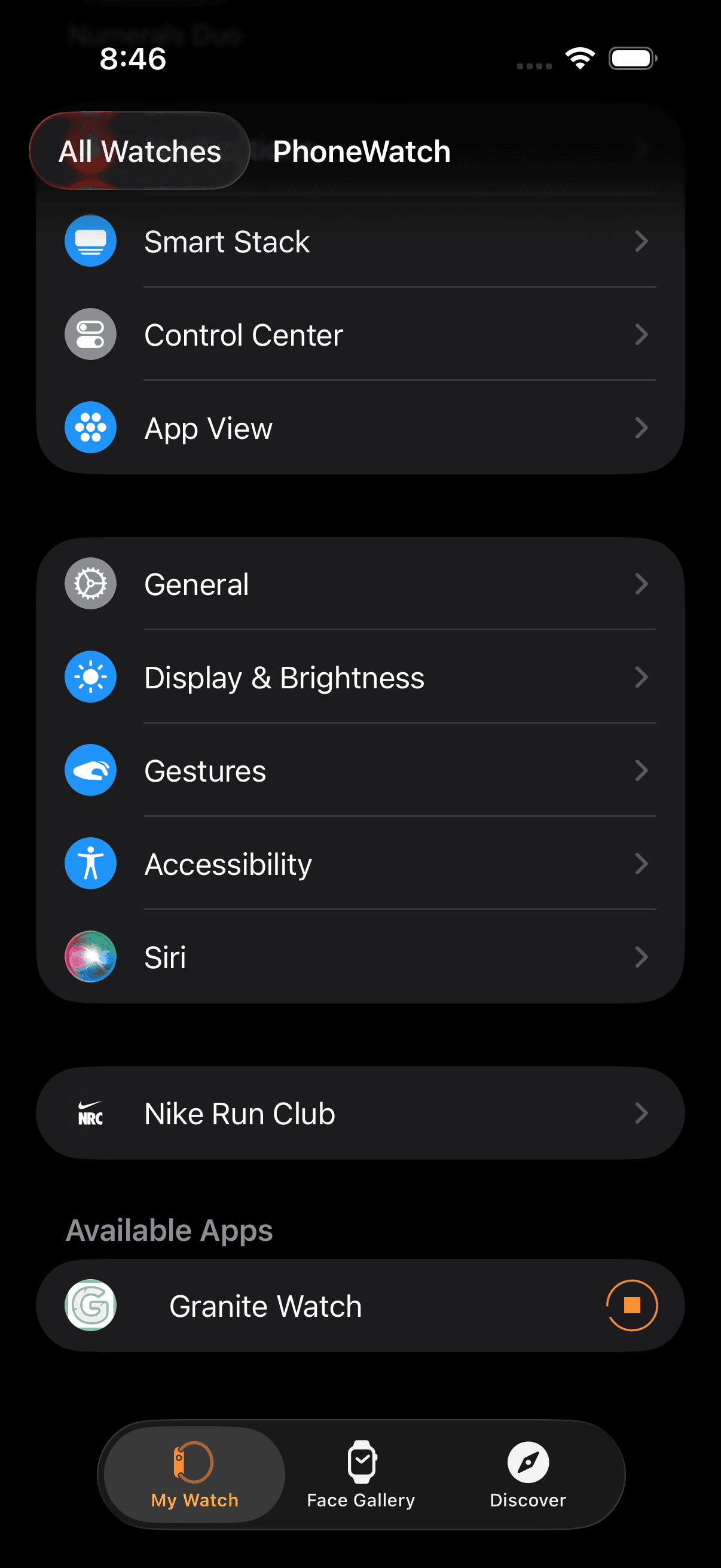
Send your latest budget to the watch
- Open Granite on the paired iPhone and let the dashboard load
- Open Granite Watch from the Apple Watch app grid or list
- Keep the devices nearby while the first budget snapshot arrives
Add the Daily Budget complication
- Touch and hold a watch face, then tap Edit
- Swipe to the complications screen and select an available position
- Turn the Digital Crown until you find Granite’s Daily Budget complication
- Press the Digital Crown to save, then tap the face to use it
What the watch can show
Granite Watch is a glanceable companion to the iPhone app. It can show your current daily amount and supporting status from the latest synchronized snapshot. Open Granite on iPhone when you need to review transactions, change the plan, or confirm that connected accounts are current.
Continue learning
Keep building the full picture
Guides
How to add the Granite widget to your iPhone
Put your current Granite spending context on the iPhone Home Screen with a Small or Medium widget.
Getting started
What is a daily budget? Meaning and examples
Learn what a daily budget means, see a simple example, and understand how Granite turns a monthly financial plan into useful spending context.
Guides
How to manage your Granite account
Manage your subscription, connected banks, privacy choices, supported platforms, and permanent account deletion.