

Getting started
How to enable Face ID in Granite
Protect access to Granite on a supported iPhone and return to your budget with Face ID.
Turn on Biometric Lock
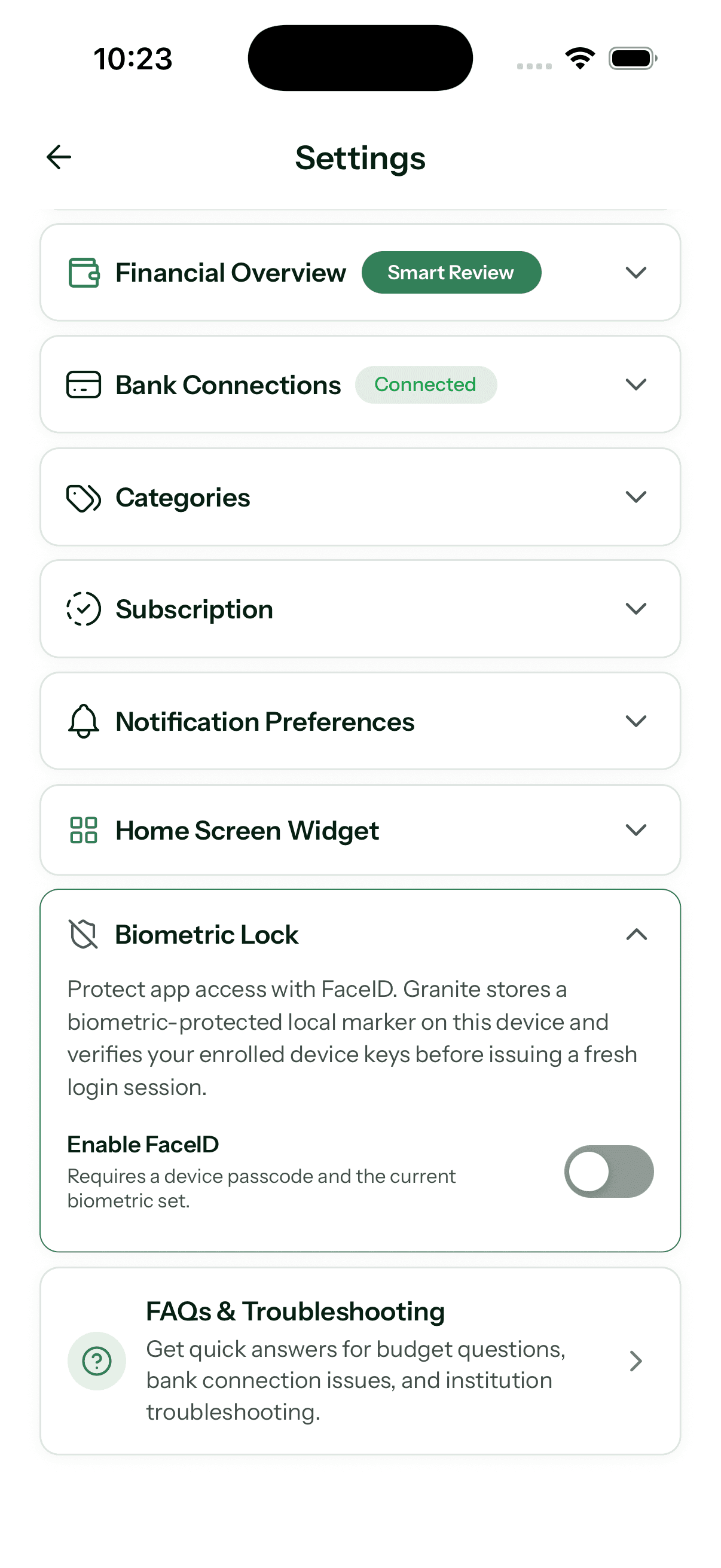
Open Granite, go to Settings, expand Biometric Lock, and turn on Enable Face ID. Your iPhone may ask you to confirm with the Face ID already enrolled on the device.
Granite requires a device passcode and an available biometric set. If the option is unavailable, confirm that Face ID is configured in your iPhone settings before trying again.
What happens after you enable it
The next time Granite needs to unlock the app or restore an eligible session, it can ask Face ID to verify that you are using the enrolled device. Your face data remains managed by iOS; Granite does not receive or store an image of your face.
Biometric Lock is enabled per device. If you install Granite on another phone, change the biometric set, or sign out in a way that clears the local credential, you may need to enable it again.
If Face ID will not enable
- Confirm the iPhone has a passcode and Face ID configured
- Sign in to Granite again if the app asks for a fresh session
- Allow Granite to use Face ID when iOS displays the permission prompt
- Restart Granite and return to Settings → Biometric Lock
Continue learning
Keep building the full picture
Guides
Connected accounts and pending transactions
Follow a transaction from secure account connection through Plaid, Granite synchronization, pending activity, and your updated budget.
Getting started
What is a daily budget? Meaning and examples
Learn what a daily budget means, see a simple example, and understand how Granite turns a monthly financial plan into useful spending context.
Guides
How to manage your Granite account
Manage your subscription, connected banks, privacy choices, supported platforms, and permanent account deletion.